A Calendar Widget for Android That Shows When Each Alarm Rings
Guide
Always On Time's home screen widgets show your upcoming events together with when each alarm will ring, so you can see the rest of your day, and whether anything is set to ring, without opening an app. There are three: Today, Cards and Next up. Tap any event to turn its alarm off or on.
We make Always On Time. These widgets are part of its Android app, which turns calendar events into full-screen alarms.
Pick a widget
- Today lists your day in order, with each start time down the left and when its alarm rings. It starts at 4 × 4 cells.
- Cards shows the same day with the next event highlighted, its meeting app and when each alarm rings. It also starts at 4 × 4.
- Next up is the small one, at 2 × 2. It shows your next event and when it rings, and as you make it bigger it fills in the rest of the day.
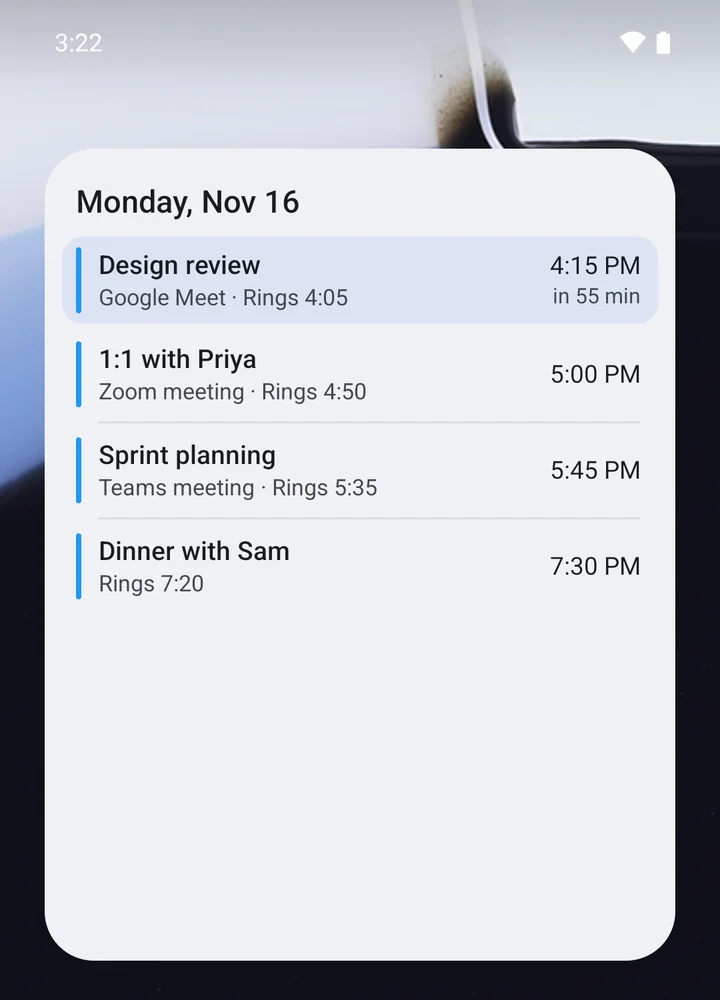
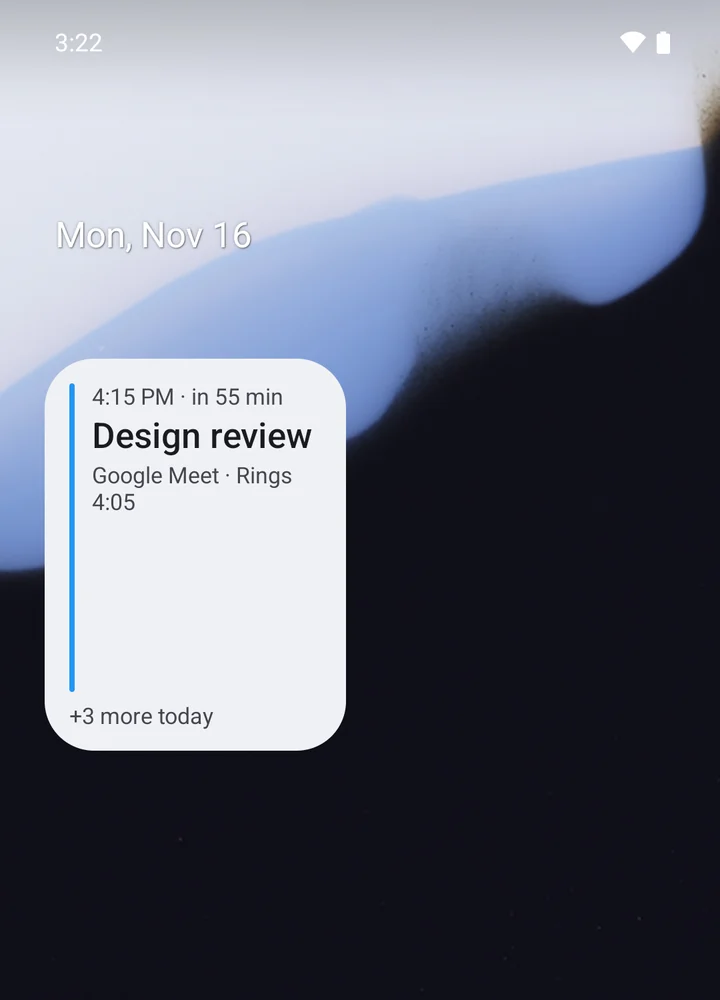
All three can be resized. They follow the calendars you chose in the app, so a calendar you don't watch won't clutter them.
Add one to your home screen
- Install Always On Time from Google Play, allow calendar access and choose which calendars to watch.
- Touch and hold an empty spot on your home screen, then tap Widgets.
- Find Always On Time and drag Today, Cards or Next up onto the screen.
- Resize it by touching and holding it, then dragging its edges.
The wording varies a little between phone makers; Google's Android Help covers the general steps.
What the widget tells you
Each event carries a short note about its alarm:
- Rings 9:50: when the alarm will go off.
- Leave 9:20: for an event with travel alarms, when it's time to head out, from your time-to-leave alarm.
- Alarm off or Paused: this event won't ring, either because you turned its alarm off or because alarms are paused.
If alarms are paused, the widget says so and when they come back. If something would stop alarms from ringing, such as a missing permission, the widget shows Alarms may not ring. Tap to fix. and takes you to the fix.
When an event has a Google Meet, Zoom, Microsoft Teams or Webex link, a Join button appears beside it once it's time to join, following the app's Show Join button setting, so you can open the call straight from the home screen.
Change an alarm from the widget
Tap an event to open a small sheet over your home screen:
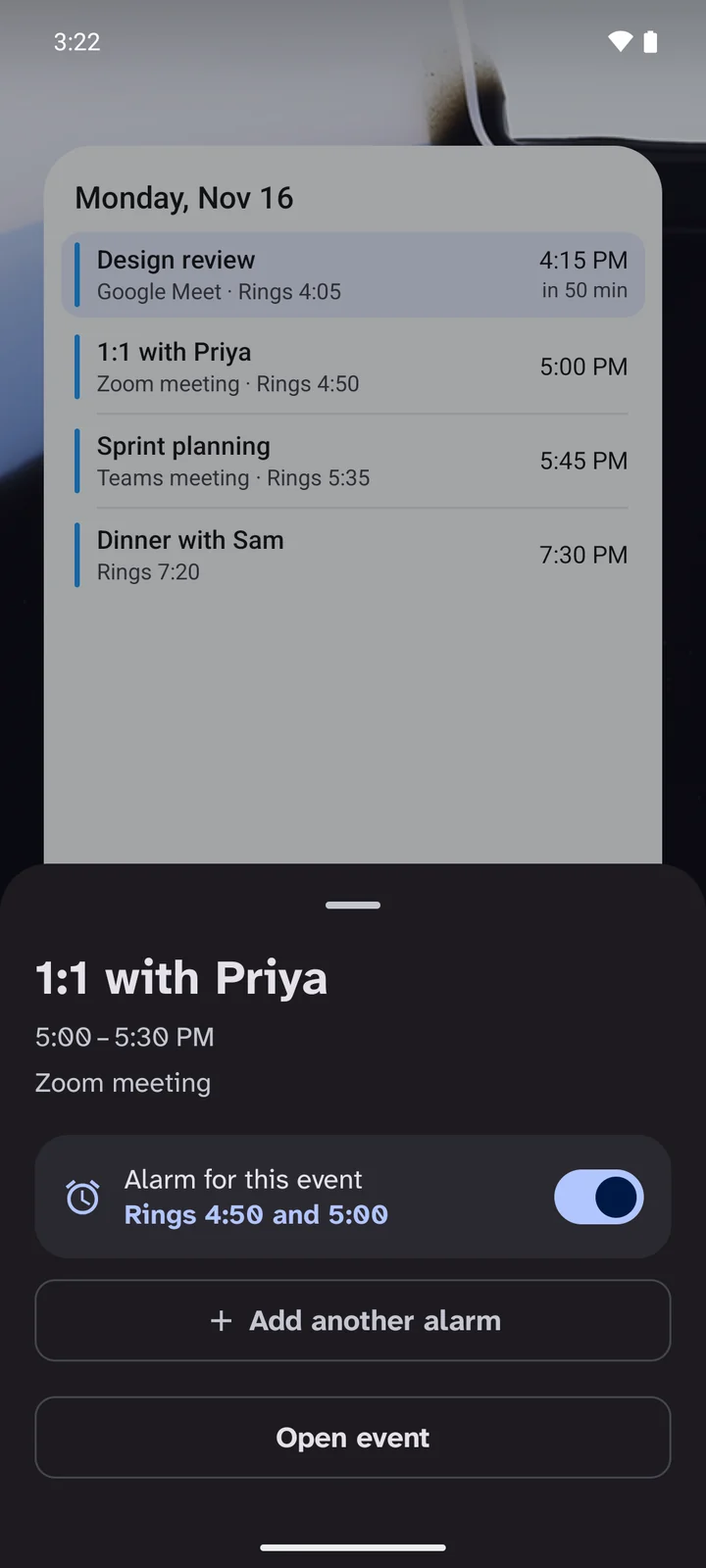
- Alarm for this event turns that event's alarm off or on. For a recurring meeting it changes just this one; open the event in the app to change the whole series. If you change your mind, tap Undo.
- Add another alarm opens the event in the app, ready to add an extra ring, such as one five minutes before the start.
- Open event takes you to its full details in the app.
That makes the widget a quick way to quiet one meeting you're skipping without touching your calendar, or to add a ring for one that matters.
Get Always On Time on Google Play. It is free to download, with no ads. For the alarms themselves, see how to make Google Calendar events ring like an alarm on Android.
Questions
- Is there an Android widget that shows calendar events with their alarm times?
- Yes. Always On Time has three home screen widgets on Android: Today, Cards and Next up. Each lists your upcoming events from the calendars you chose in the app, with the time each event's alarm will ring and, for travel alarms, when to leave.
- How do I add a calendar alarm widget to my Android home screen?
- Install Always On Time and choose your calendars. Then touch and hold an empty spot on your home screen, tap Widgets, find Always On Time and drag Today, Cards or Next up onto the screen. The exact steps vary a little between phone makers.
- Can I turn off a meeting's alarm from the widget?
- Yes. Tap an event on the widget to open a small sheet with an Alarm for this event switch. For a recurring meeting it changes just that one occurrence; open the event in the app to change the whole series. The sheet also has buttons to add another alarm or open the event in the app.
- Can I join a video call from the widget?
- When an event has a supported Google Meet, Zoom, Microsoft Teams or Webex link, the widget shows a Join button next to it once it's time to join.
Sources
- Always On Time: features and availability · accessed November 16, 2026
- Always On Time on Google Play · accessed November 16, 2026
- Android Help: Add apps, shortcuts and widgets to your Home screens · accessed November 16, 2026